
How to use VoxLore
Everything the app can do, step by step.
A plain-language guide to listening, saving, recording and building your family tree of voices. It follows the app as it is in the current beta.
01
Getting started
Sign in with Apple, Google or an email link, or skip and look around first.
When you open VoxLore for the first time you have four ways in:
- Sign in with Apple or Sign in with Google takes you straight to the Home feed.
- Continue with Email sends a one-time sign-in link to your inbox. Open it in VoxLore on the same device. If a link has expired or was already used, request a fresh one in the app.
- Skip lets you browse and listen as a guest, without a public profile. Whenever you look at your own profile you’ll see Create an Account; use it to sign in later without losing your place.
Set up your profile
The first time you sign in, VoxLore asks a few questions so people can get to know you:
- First and last name (required) and a profile photo.
- Birth date and birth city and state. Both are optional and private unless you turn on “Show on my profile”.
- Passion For: what you care about, for example “Recording my grandparents’ recipes.”
- Legacy Statement: your answer to “If your voice became your legacy, what would it say?”
- A short first-person introduction.
You can change any of it later from your profile.
02
Finding stories
Home is your feed; Discover is for browsing. Both lead straight to playback.
VoxLore has four tabs along the bottom: Genealogy (the bare tree), Home (the house), Discover (the lightbulb) and Library (the book with a play button).
Home scrolls through:
- Featured Bio: one notable life story, front and centre.
- Trending Episodes: the most-listened-to Episodes right now.
- Recent Episodes: the newest releases.
- Interesting People: people introduced in a sentence or two.
- People You May Like: suggestions for who to hear next.
Discover has Trending and Recent Episodes too, plus a Top Bios grid.
Tap an audio Episode to open the Episode Player; video Episodes open full screen. Tap a person’s photo or name to open their profile.
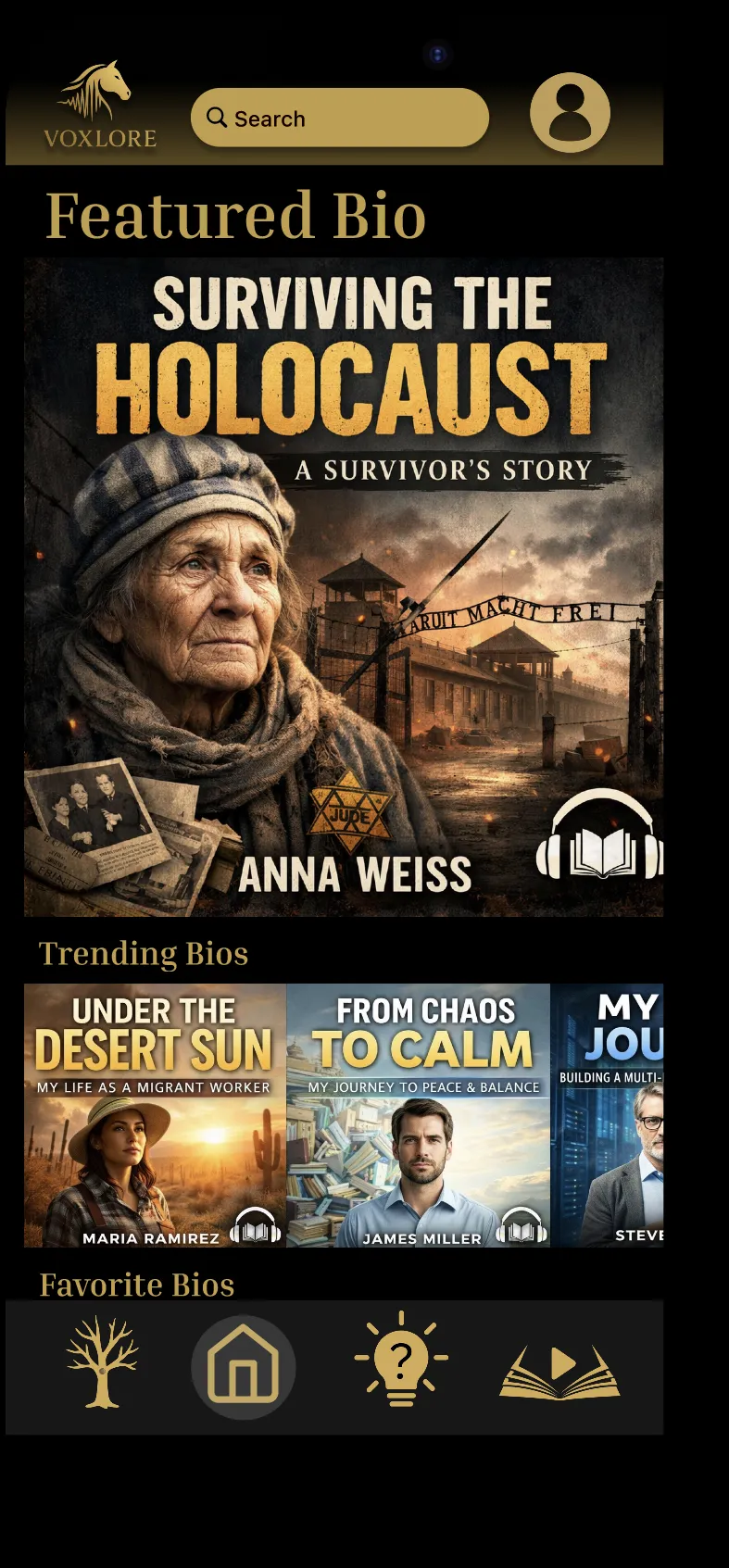
Home opens on a Featured Bio, with what people are listening to right now. 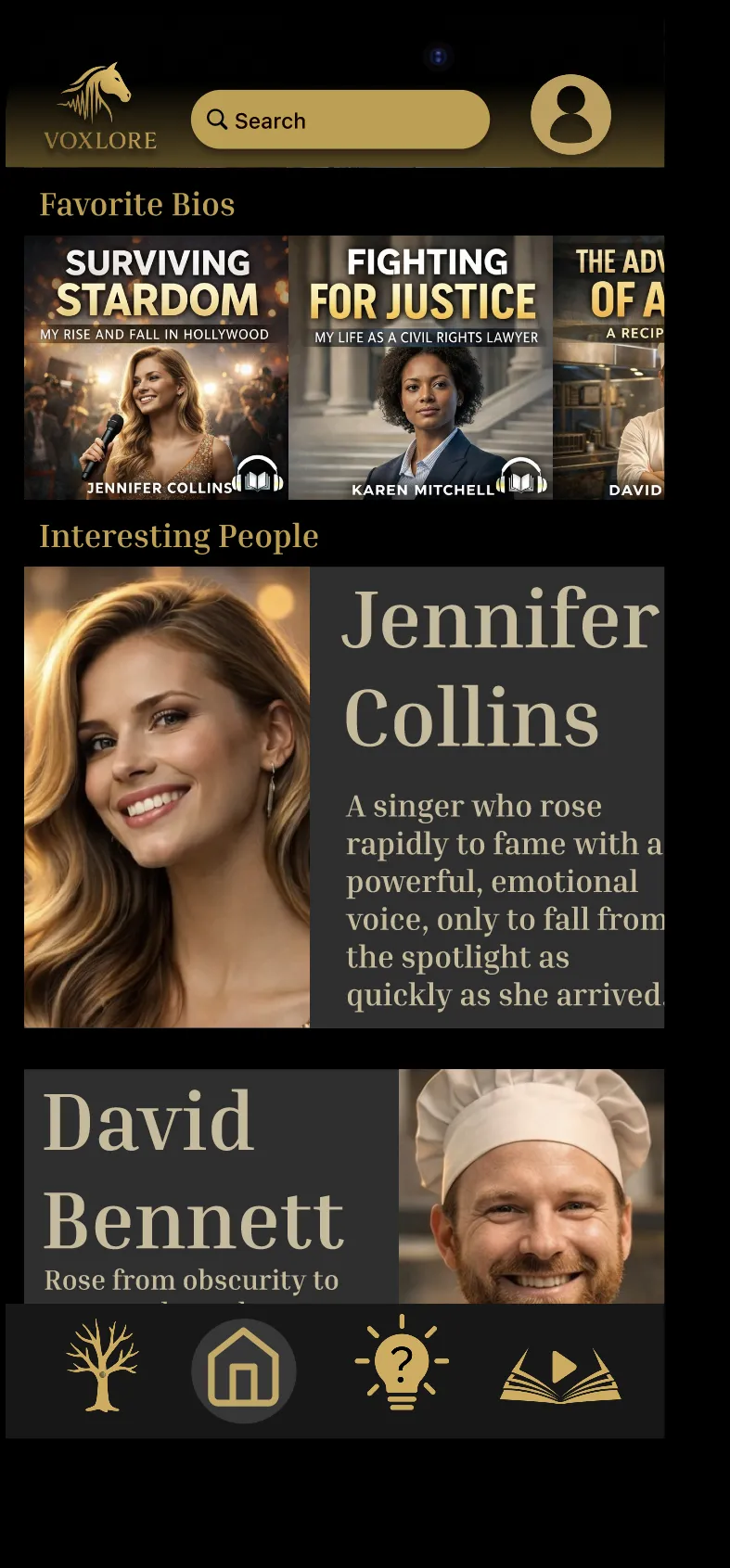
Interesting People introduces someone in a sentence. 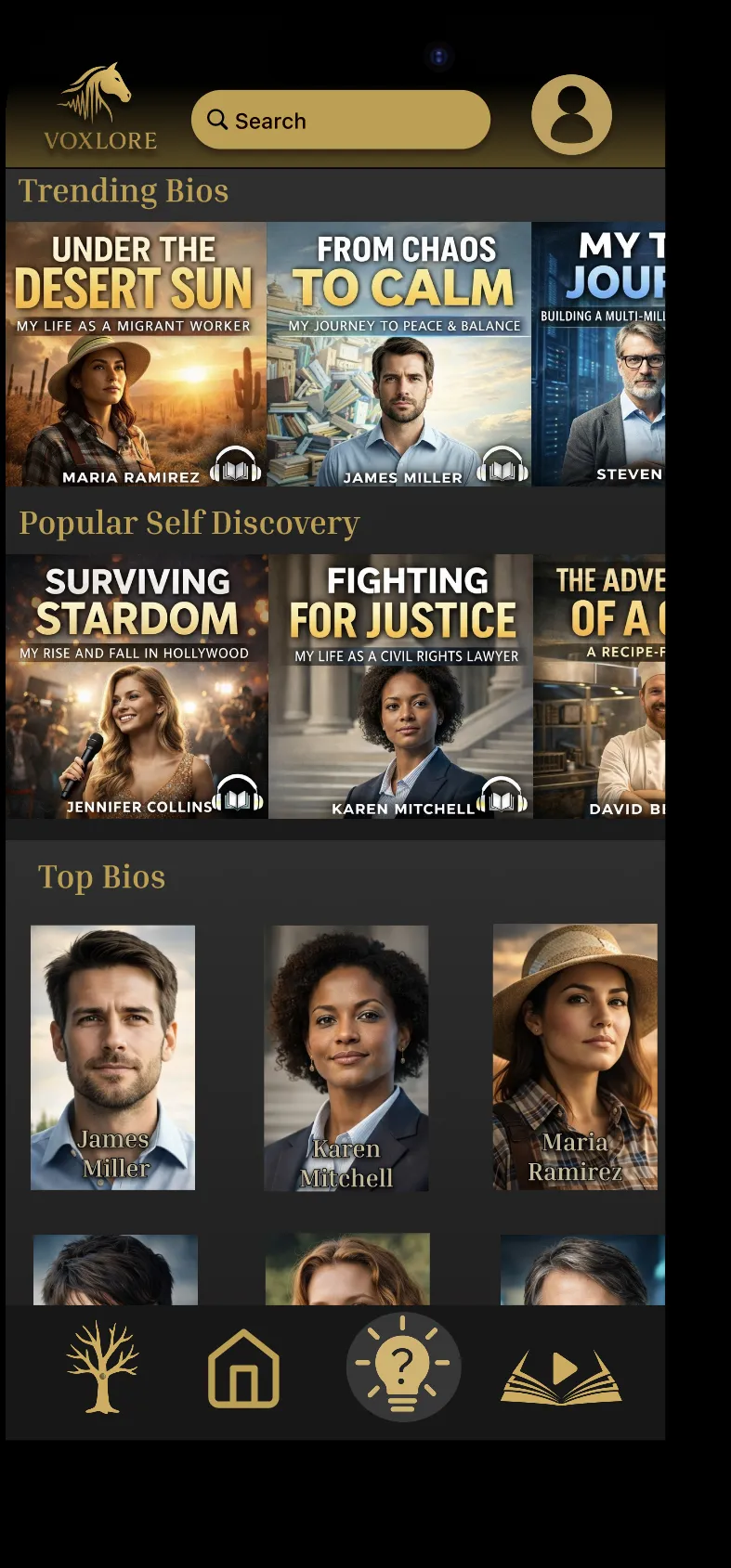
Discover lays out trending Episodes and the top Bios.
03
Listening
The Bio Player plays a whole life story; the Episode Player focuses on one.
The Bio Player opens when you tap a Bio. It shows the title and tagline, the playback controls (previous, back 10 seconds, play or pause, forward 10 seconds, next), a progress bar you can tap or drag, the story’s description, and the run time, category and rating of the Episode that’s playing. Every Episode in the Bio is listed below; tap one to play it.
The Episode Player opens when you tap an audio Episode on Home or Discover. It keeps to that one Episode, with its cover, description and controls. Tap View Full Bio to see the rest of the story.
Rating an Episode
When you’re signed in, tap one of the five stars under Rate this episode. Tap a different star at any time to change your rating. You won’t see the stars on your own Episodes.
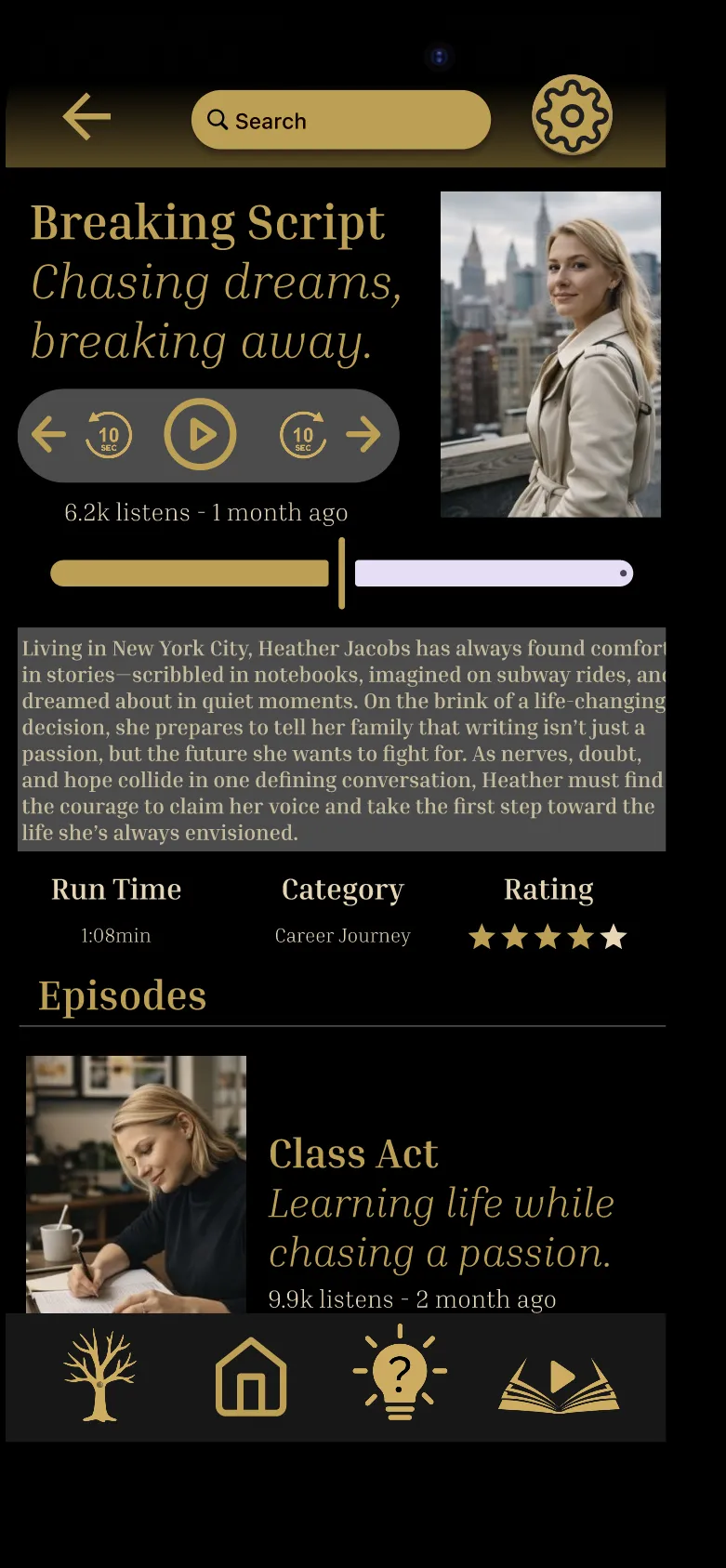
The Bio Player plays a whole life story, Episode by Episode.
04
Your Library
Recent, My List and Downloads keep the stories you care about close.
The Library tab has three parts:
- Recent: Episodes you’ve played lately, newest first.
- My List: Bios you’ve saved.
- Downloads: Episodes kept on your phone so you can listen without a connection. A Download stays on the device where you made it.
Tap anything in Recent or My List to jump back into the Bio Player.
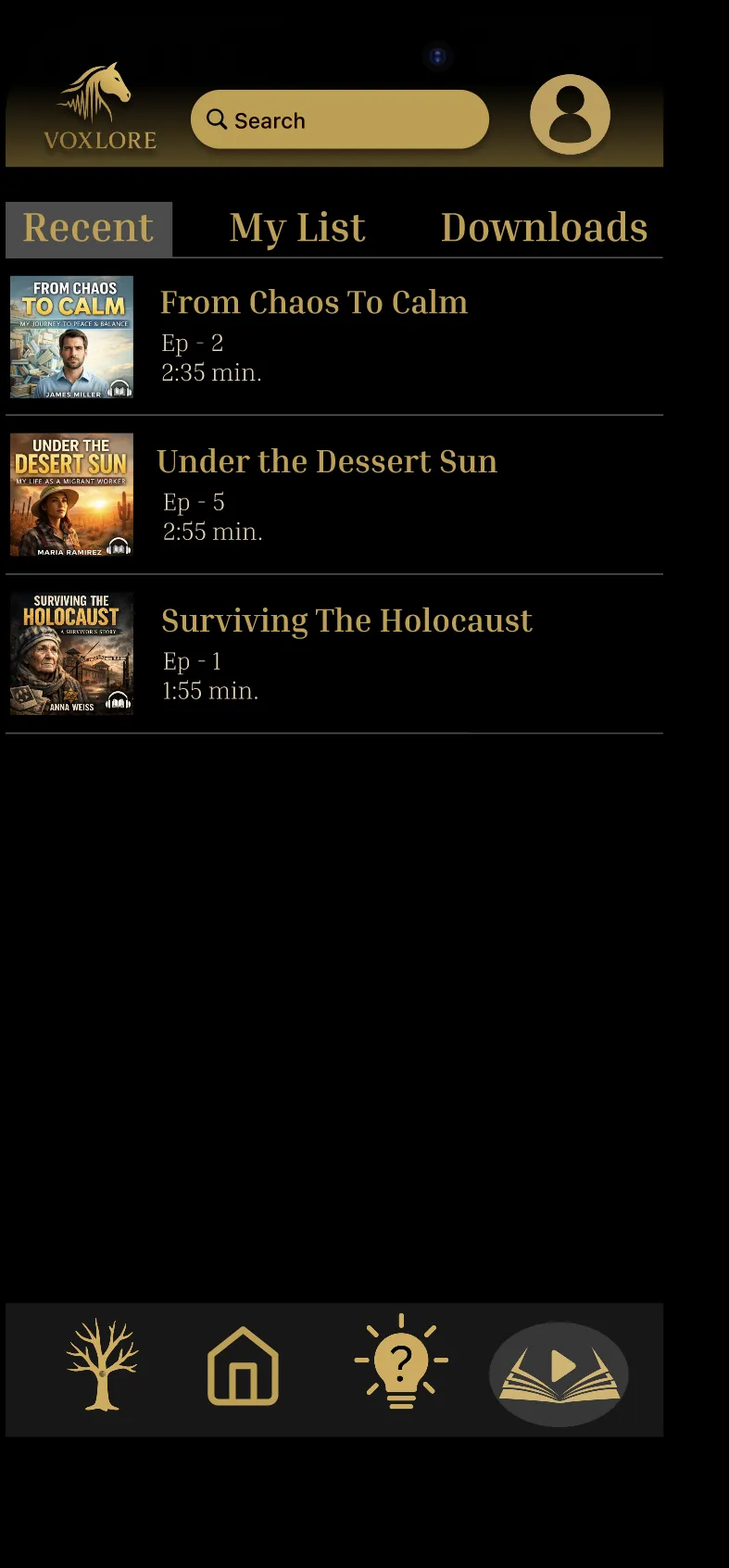
Library keeps your recent listens a tap away. 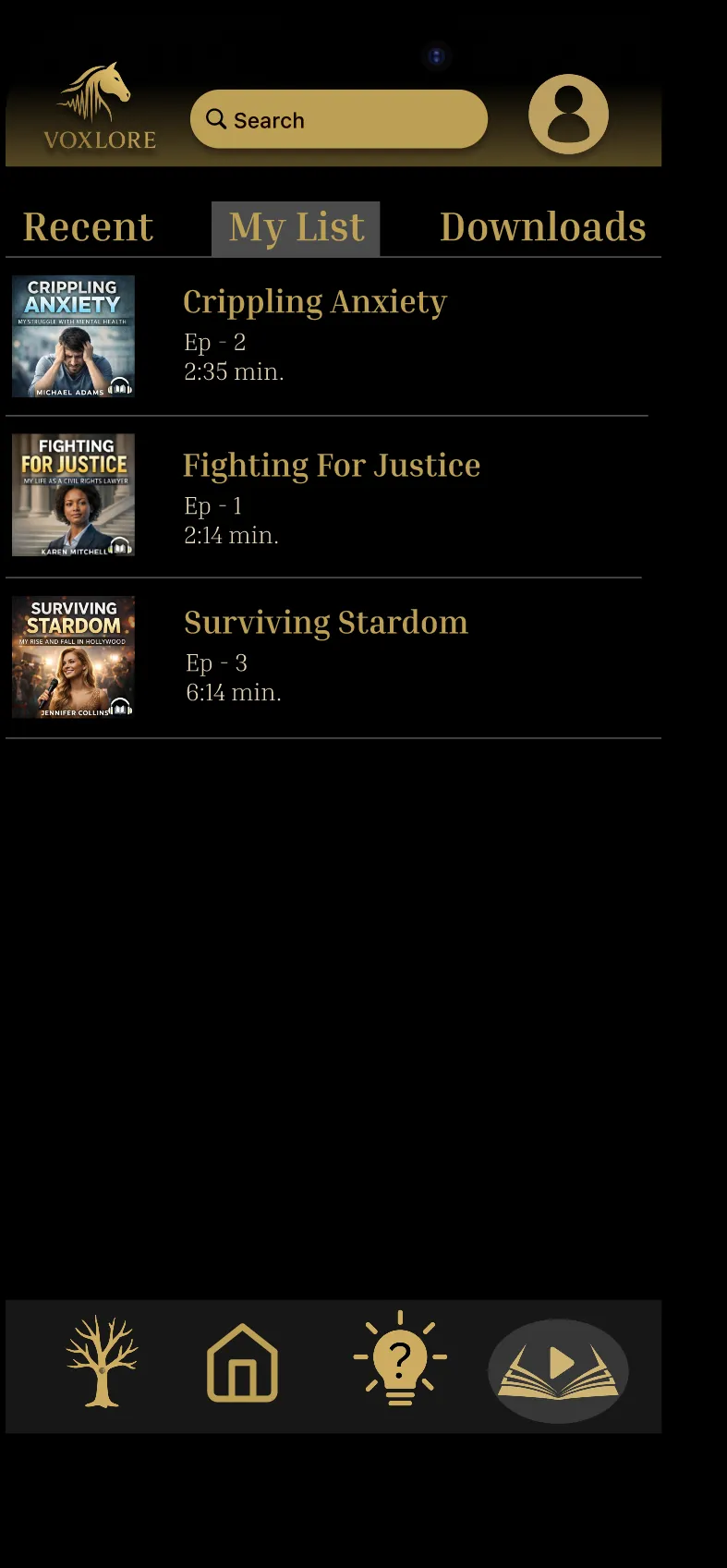
My List holds the Bios you've saved. 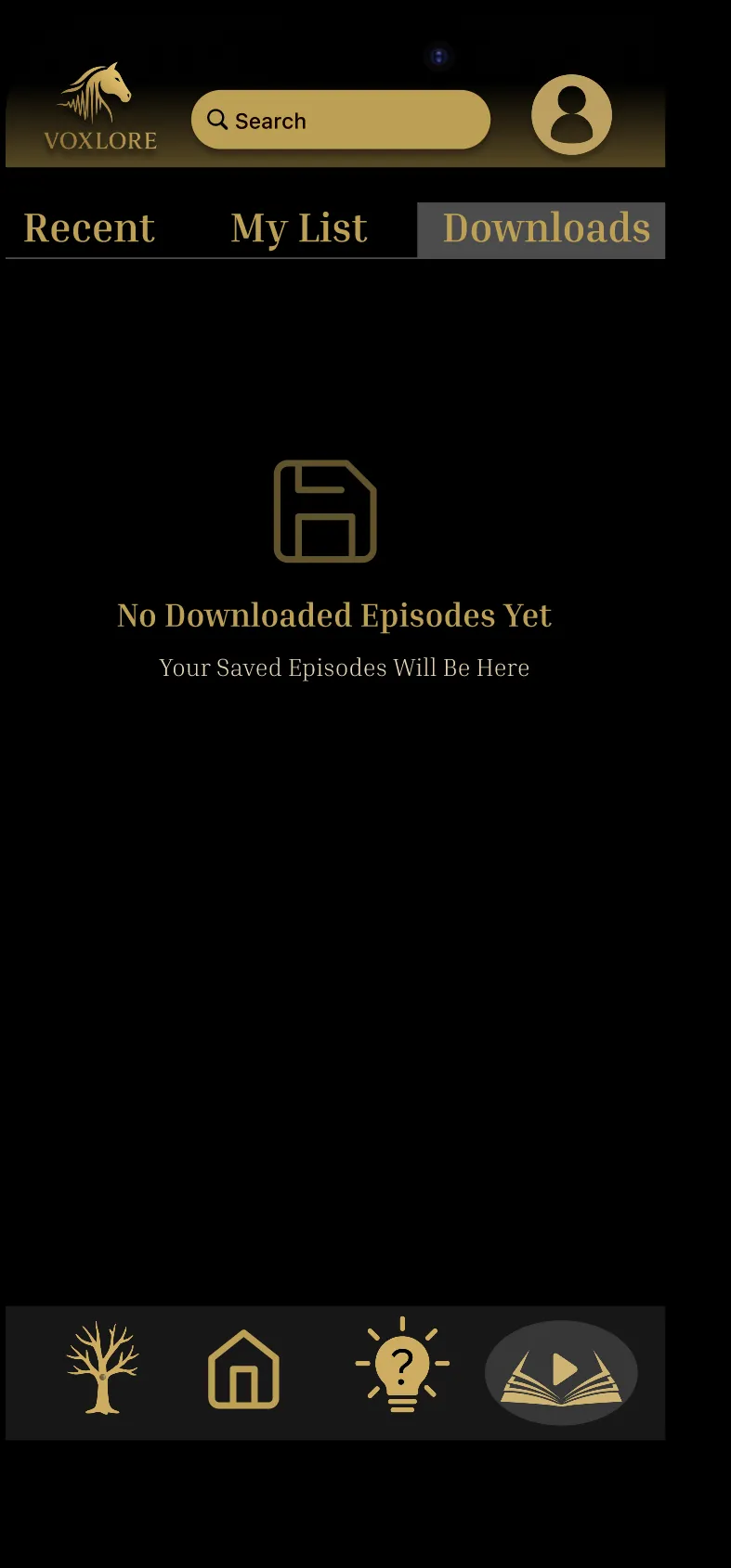
Downloads keep Episodes on your phone for offline listening.
05
Profiles and your Channel
Every profile pairs a person with the stories they tell.
Tap a person’s name, photo or avatar anywhere in the app to open their profile. You’ll see their photo, their Passion For and Legacy Statement, a short introduction, their playlists and photos, and their Channel: every Episode they’ve published, newest first.
Birth date and birthplace appear only if that person chose to show them.
Your own profile
- Tap the pencil next to your name to edit your details.
- The My Episodes tab lists everything you’ve published or drafted across all your Bios. Use the ⋮ menu on any Episode to Edit, Reorder, Withdraw it back to a Draft, or Delete it.
- Add Bio starts a new Bio. A Bio has a name, a description, and optionally a photo and categories.
- Tap the sign-out icon in the header to sign out.
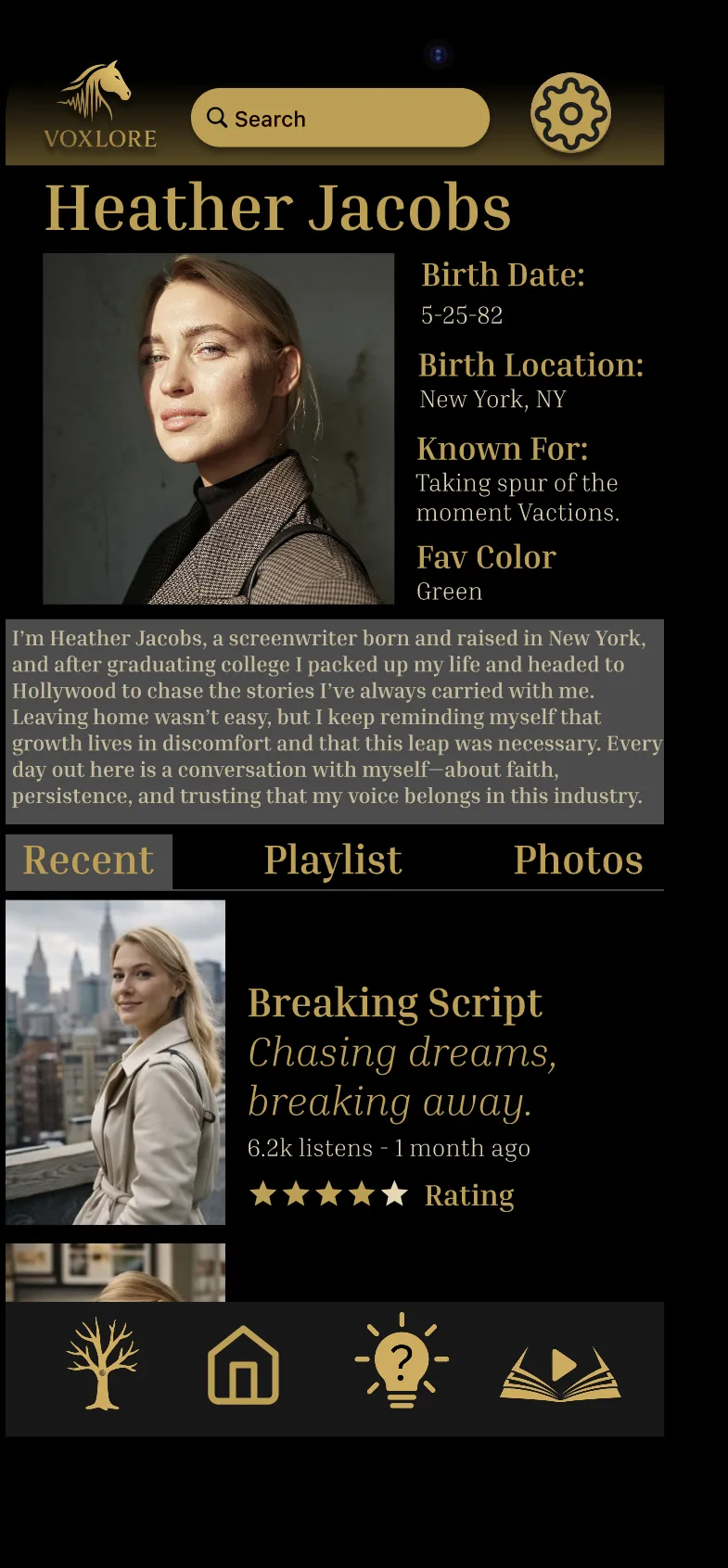
Every profile pairs a person with the stories they tell. 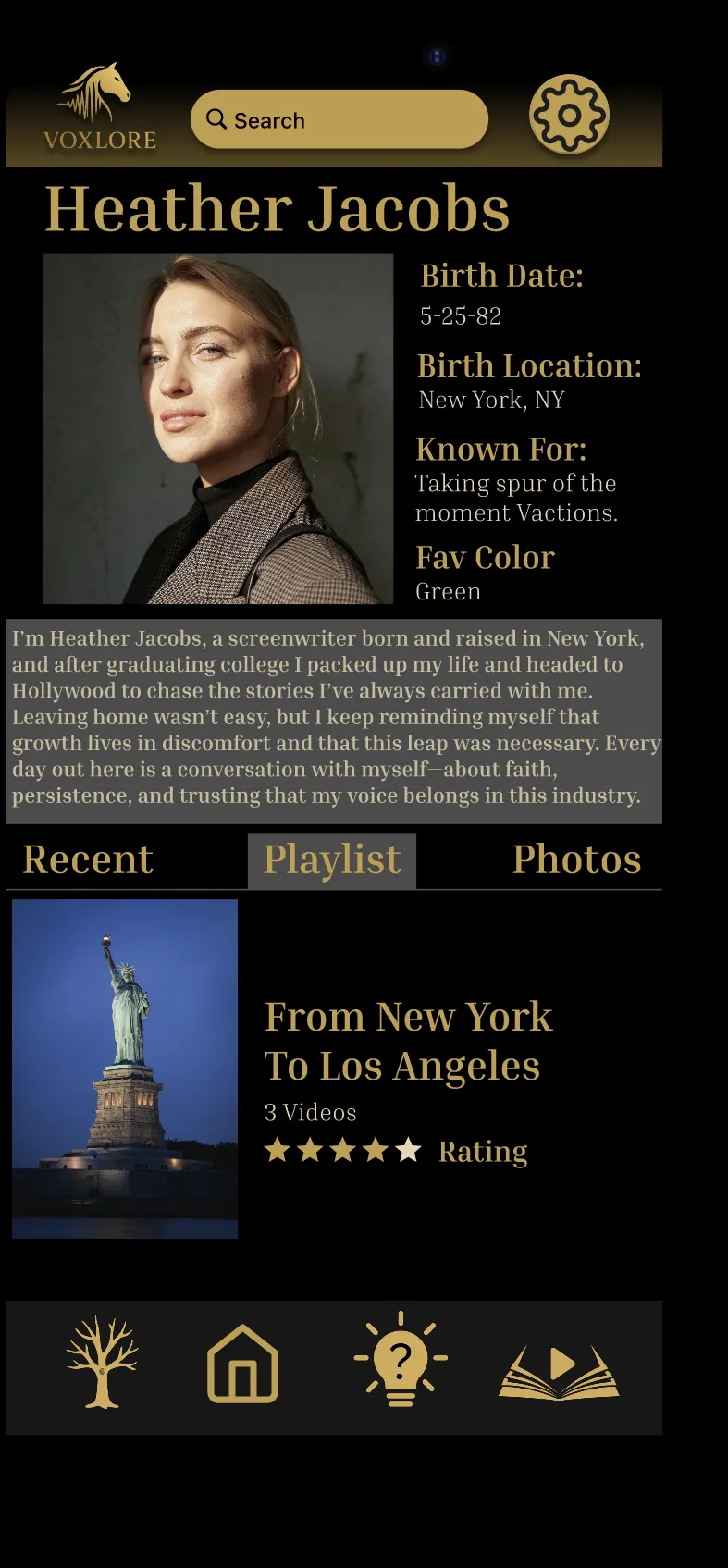
Playlists gather stories around a theme. 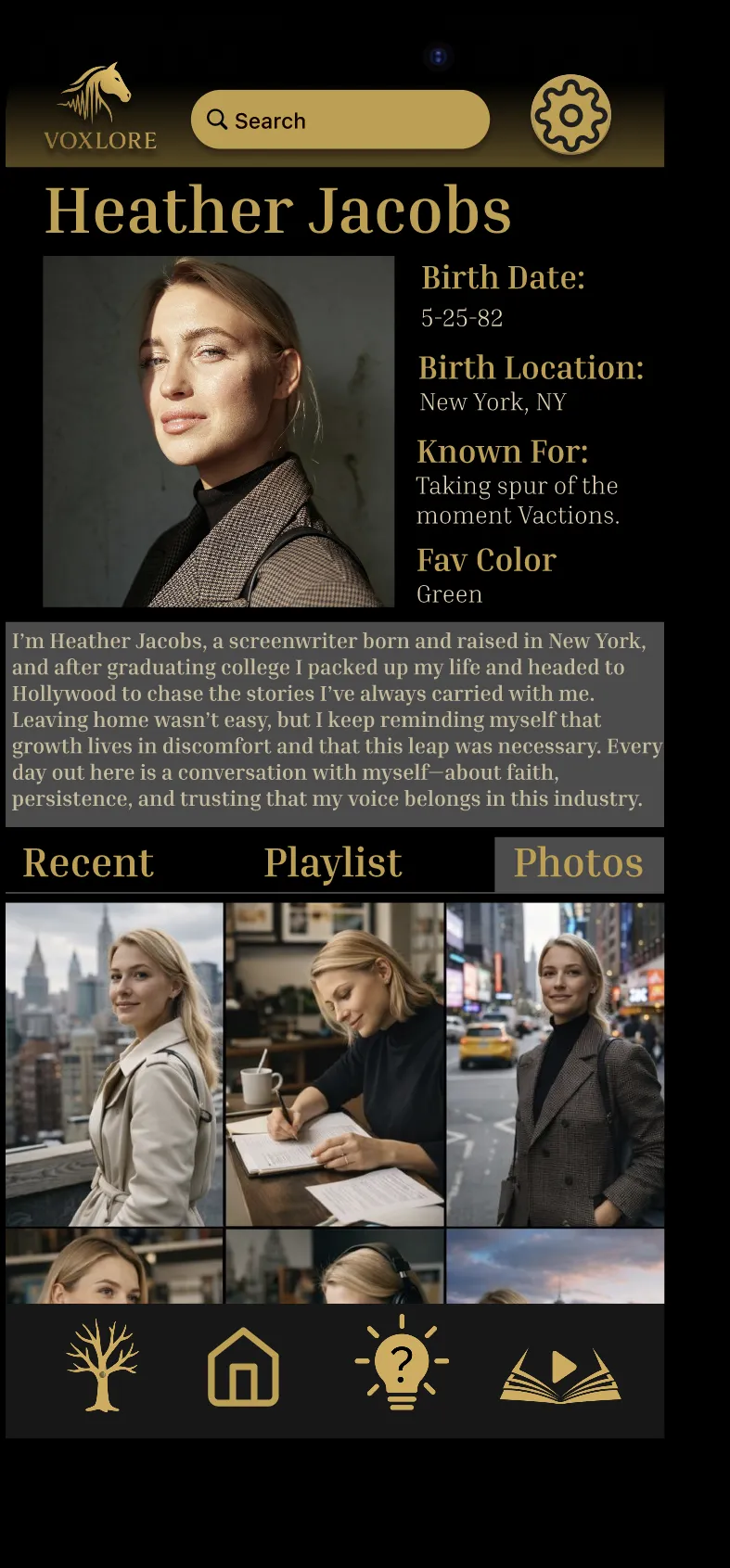
Photos add faces and places to the story.
06
Recording an Episode
Five guided steps take you from a blank page to a published Episode.
Tap the gold + on the My Episodes tab of your profile. If you don’t have a Bio yet, VoxLore helps you create one first.
- Choose a Bio. Pick which Bio the Episode belongs to. (Skipped if you only have one.)
- Audio or video. Choose the kind of Episode.
- Record or upload. Record in the app, or upload a file you already have.
- Add the details. Title, tagline, description, category, cover image, and where it sits in the Bio’s order. Telling someone else’s story? Name who it’s about and whose voice is heard. Recording an interview? Credit each Featured Guest by name.
- Review and publish. Preview the Episode card, then choose Publish Now or Save as Draft. Only you can see or hear a Draft.
Tap ✕ at any point to cancel. If you lose your connection during an upload, reopening the wizard offers to resume where you left off.
After publishing, you can edit the details, reorder, withdraw back to a Draft, or delete the Episode at any time.
Illustration
07
Your family tree of voices
Explore your family as a tree you can listen to, and remember relatives who have passed away.
The Genealogy tab starts with you in the middle and your relatives in rings around you: parents above, children below, siblings and spouses beside you.
- Tap someone to focus on them and preview their voice. Tap empty space to step back.
- Long-press someone to hear a short clip of their most-listened Episode.
- Double-tap to load the next generation connected to them.
- Pan and pinch to move around and zoom.
- Use the chips at the top (Parentage, Spouse, Siblings, Mentions) to show or hide kinds of relationship.
When nothing is focused, the tree plays a quiet layer of short clips from your relatives, like chatter at a family gathering. The mute and volume icons in the header control it.
If the tree gets very large, or Reduce Motion is on, VoxLore switches to a simple list of the same people. You can switch to the list yourself at any time.
Adding a relative
Tap the gold +, choose Parent, Child, Spouse or Sibling, then either:
- Search VoxLore for them and send a request. They appear on your tree as pending until they accept.
- Choose Deceased to remember a relative who has passed away, with optional dates and a photo. They’re added straight away and marked with a gold leaf.
New to the tree? A small demo shows how it works before you add anyone. Open it any time from the ⓘ button.
Illustration
08
Privacy and your account
You decide what others see about you and your family.
- Your family stays private. Relationships on your tree are visible only to the people directly involved and are never used for public discovery on Home or Discover.
- Hide or collapse. Long-press a line between two people to hide that connection from your view or collapse the branch beyond it. The Privacy icon in the Genealogy header lists everything you’ve hidden, with a one-tap restore.
- Revoke a relationship. Either person can revoke a confirmed relationship. This removes it for both people and can’t be undone.
- Birth details. Your birth date and birthplace are private unless you turn on Show on my profile.
- Drafts. Only you can see or hear a Draft Episode.
- Signing out. Tap the sign-out icon on your own profile.
VoxLore is in beta
Be one of the first voices.
VoxLore is available soon on Apple and Android devices. Join now to tell us which phone you use and whether you want to listen, tell stories or both. Be first in line for the Founding plan.
Join the beta